Introduction
Listed below is a step-by-step guide for customers on the offboarding process within their organization when terminating their contract with TSI. It details the required actions for deleting an Assured Workloads (AW) folder and its associated resources using the Google Cloud console.
Note : Before deleting the Assured Workloads folder or CMEK project, it is very important to delete all the CMEK keys and its versions created inside the CMEK project.
Step 1
Disable and Destroy Key: Before destroying the key version, please ensure that they are not used for data encryption. As per Google documentation:

Cloud KMS Admin (roles/cloudkms.admin) IAM role is required on the project or a parent resource to be able to disable/destroy keys.
To destroy keys inside project, do the following:
-
In the Google Cloud console, go to the cmek project (where customer-managed encryption keys are located) under your organization. Navigate to Key Management.
-
Click on the available keyrings. Inside the keyring you will have several keys and key versions.
-
It is possible to disable all key versions and then destroy all key version material on the Key ring details page using the three vertical dots menu in front of the given key

-
Alternatively, each key version can be disable and destroyed individually from the key detail page.

When you choose to destroy a key, its key version status changes to "Scheduled for
Destruction." The key material will be permanently deleted after the configured destruction
period.
At this stage, it is safe to delete the CMEK project, as the keys will be automatically removed
once the scheduled destruction period ends.
Step 2
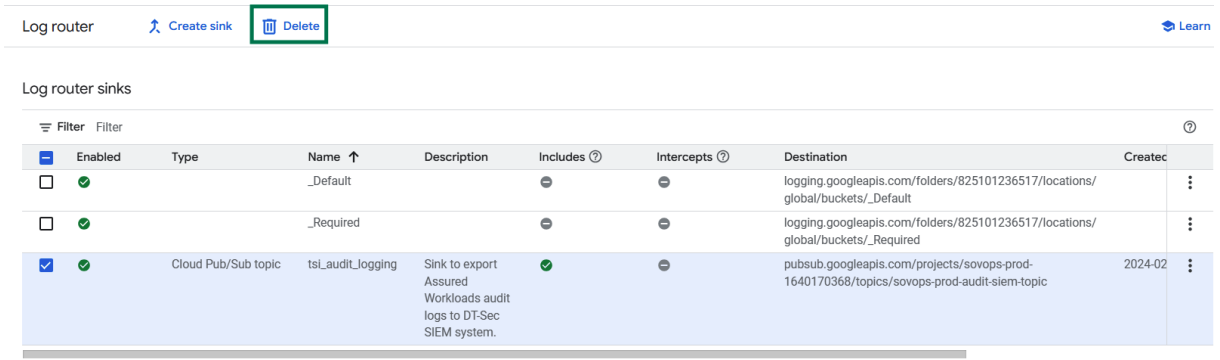
Delete the Log router sink.
If you have created a log router sink at the AW folder level in the organization for transferring
audit logs, it must also be deleted.
-
In the Google Cloud console, select the AW folder and navigate to Log router page.
-
Select the “Cloud Pub/Sub topic” and click on Delete.
Step 3
Delete CMEK project and AW folder:
-
In the Google Cloud console, go to the Manage resources page
-
In the project list, select the cmek project under your Assured Workloads folder. Then,
click "Delete".
-
In the dialog that appears, type the project ID as instructed, and then click Shut down
to delete the project.
-
In the folder list, select the Assured Workloads folder, and then click “Delete”.
-
In the dialog that appears, type the folder ID as instructed, and then click Shut down
to delete the folder.
-
Click on the Navigation menu, and then click Compliance.
-
From the list of AW folders, locate the folder you want to delete, and click Delete. In
the dialog that appears, type the folder name as instructed, and then click Confirm to
delete the folder.
Once the Assured Workloads folder and CMEK project have been deleted, please notify TSI Service Delivery Managers via
"GCP_Service_Delivery_Management@t-systems.com" so they can proceed with the offboarding process on their end.
This includes deleting EKM connection resources such as the endpoint and domain.
Otherwise, these resources will remain active and continue to incur charges.
TSI Support:
Should you have any questions or uncertainties, please reach out to the TSI team via email (GCP_Service_Delivery_Management@t-systems.com) so that we can provide the necessary support.
