
Listed below are the settings that require configuration on your end to keep your Assured Workloads resources compliant with the control program Sovereign Controls By T-Systems:
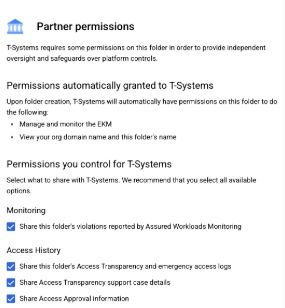
Ensure that all the partner permissions are granted in the Assured Workloads Folder Details / Configure Partner Permissions (2 minutes)
Steps: In the Google Cloud Console, go to Assured Workloads, select your organization, select the Assured Workloads Folder with the Control Package Sovereign
Controls by T-Systems and click Configure Partner Permissions. Ensure that all the permissions are granted.
Link
Short explanation
Monitoring
This enables us to view Assured Workloads monitoring information about your sovereign folder. This includes any unresolved or resolved compliance violations,
and any exceptions you've granted for those violations. These violations limit our capabilities to ensure the sovereignty of Customer Data. If we know about
these violations, we can coordinate with you to review them and act to remediate any sovereignty-related violations.
Access Transparency and emergency access logs
This includes permissions to view Access Transparency logs and emergency access logs for your folder. This log records the actions that Google personnel take
when accessing Customer Data stored on Google Cloud. This capability is vital for us to uphold the responsible handling of data and is essential in safeguarding
the integrity and confidentiality of sensitive information.
Share Access Transparency support case details
This enables us to see the Google Case number and information to be able to ensure that the access from Google personnel is legitimate.
Access Approval information
This includes permissions to view Access Approval logs for your folder. This provides us a view of all requests that were approved, dismissed, or expired by you.
Granting this permission is crucial for us to verify the legitimacy of Google access, ensuring that it aligns with your explicit approvals.
Set Up Signed Access Approval in the Assured Workloads Folder Details / Sign Access Approval (5-10 minutes)
Prerequisites
Steps
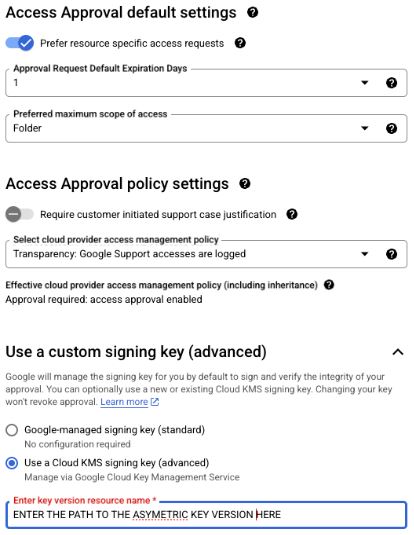
In the Google Cloud Console, go to Assured Workloads, select your organization, select the Assured Workloads folder with the control package Sovereign
Controls by T-Systems and click Manage Access Approval Settings. Set up the Access Approval settings according to your requirements or based on the picture below.
Link
Short explanation
This enables us to view Assured Workloads monitoring information about your sovereign folder. This includes any unresolved or resolved compliance violations, and any exceptions you've granted for those violations. These violations limit our capabilities to ensure the sovereignty of Customer Data. If we know about these violations, we can coordinate with you to review them and act to remediate any sovereignty-related violations.
Grant the Tech Support Viewer Role to the T-Systems security group on the Assured Workloads Folder Level (5 mins)
Prerequisites
In case the Organization Policy for Domain Restricted Sharing (constraints/iam.allowedPolicyMemberDomains) is enabled, extend it with the
domain C03s74cwe. This will allow adding our security group to your IAM.
Steps
In the IAM page, change the scope to the Assured Workload Folder created with the Sovereign Controls by T-Systems control package.
Grant the Tech Support Viewer role (roles/cloudsupport.techSupportViewer) to the ag-ICTO-21329-TSI_HPU_GCP_SOV_EU_Support@telekom.de security group.
Link
Short explanation
This required role is described in the Terms of Service (ToS) Chapter 5.3c, and it is required to fulfill the Share Access Transparency support case details responsibility.
Enable Assured Workloads audit log transfer to T-Systems Security Incident and Event Management (SIEM) system (5-10 mins)
Prerequisites
You need to have one or any of the following three Identity and Access Management (IAM) roles at the Assured Workloads folder level (the list is ordered by
the role's compliance with the principle of least privilege):
Steps
Create the log sink using the gcloud tool:
gcloud config set project <project ID of your cmek project in the AW folder>
                        gcloud logging sinks create tsi_audit_logging pubsub.googleapis.com/projects/sovops-prod-1640170368/topics/sovops-prod-audit-siem-topic
                        --description 'Sink to export Assured Workloads audit logs to T-Systems SIEM system.' --include-children
                        --log-filter 'logName:"cloudaudit.googleapis.com"' --folder <folder ID of your Assured Workloads folder>
Short explanation
The log router needs to be created at the Assured Workloads folder level with Sovereign Controls by T-Systems, to ensure that audit logs (and only those) are securely transferred to the T-Systems' (Security Incident and Event Management) system.
How to create an EKM key: Link
IMPORTANT: Once a key has been created following this documentation, the key version must be promoted. This is what is stated in the documentation: When you create a coordinated external key for Cloud EKM, note that manually created key versions aren't automatically set as the primary key version. To set it as a primary key, see Rotate a key: Link.
How to set compliance controls for your Google Cloud Organization | Google Cloud Blog
Link
Configure partner-managed Cloud KMS | Sovereign Controls by Partners | Google Cloud
Link
Moving a project | Resource Manager Documentation | Google Cloud
Link
Analyze project move | Resource Manager Documentation | Google Cloud
Link
Cloud Security Best Practices Center | Google Cloud
Link
Customer-managed Cloud KMS keys | BigQuery | Google Cloud
Link
Maintain partner-managed keys | Sovereign Controls by Partners | Google Cloud
Link
Customer-managed Cloud KMS keys | BigQuery | Google Cloud
Link
Key rotation | Cloud KMS Documentation | Google Cloud
Link
Rotate a key | Cloud KMS Documentation | Google Cloud
Link
Re-encrypting data | Cloud KMS Documentation | Google Cloud
Link
How global leaders are addressing digital sovereignty requirements - YouTube
Link
Google Cloud - YouTube - Sovereign
Link